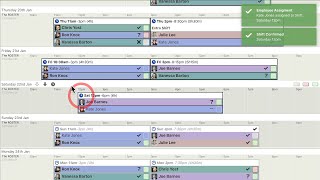
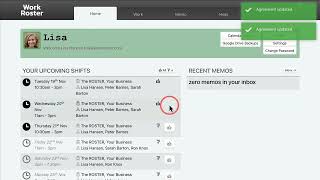
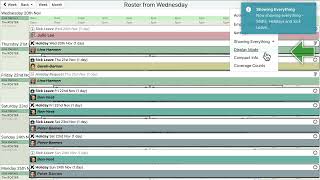
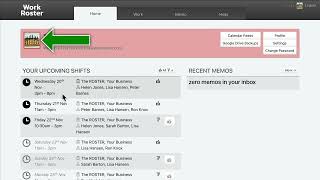
Short video guides for All Employees and Managers.
Get a rapid overview of WorkRoster’s key roster‑planning features and benefits in just a minute
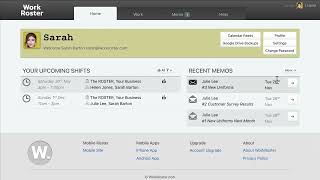
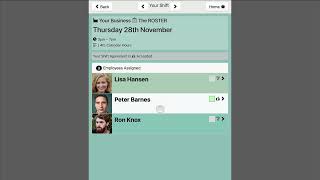
New employee walk-through - How to log in, check shifts, update availability, show interest and stay informed via the mobile app.
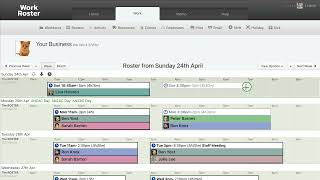
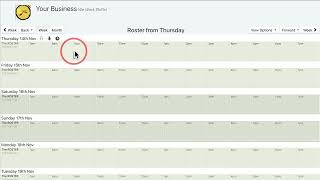
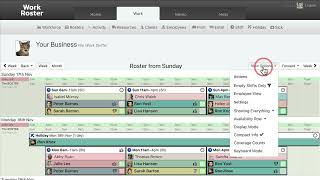
Learn to customise the roster view with display modes, compact info and coverage counts for easy at‑a‑glance usage.
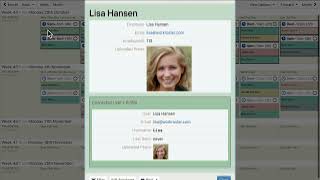
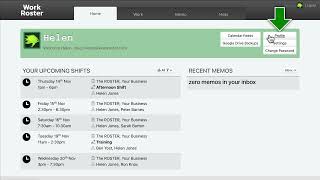
Update your profile picture and decide which contact details are visible to managers or co‑workers.
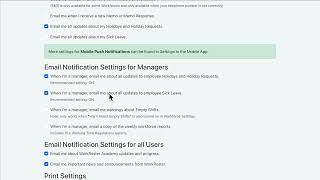
Configure email notifications, printing preferences and UI options such as call/SMS buttons and holiday display.
Mark when you’re available or unavailable in blocks or by hour and understand how managers use this information.
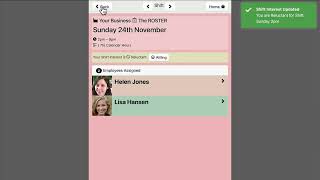
Show interest (willing or reluctant) for unassigned shifts so managers know your preferences.
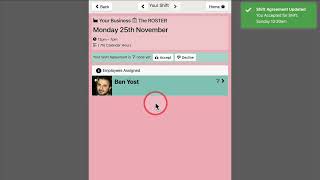
Accept or (if allowed) decline assigned shifts to confirm you’ve seen them and discuss any issues with your manager.
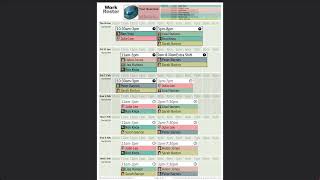
Generate printable PDFs or CSV reports of rosters and various summaries with options for colour, orientation and page size.
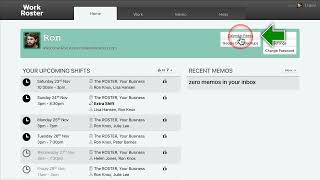
Create unique iCalendar feeds so your shifts automatically appear in your favourite calendar app.
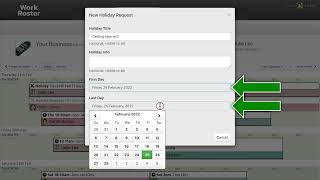
Submit holiday requests by selecting a date range and optional comments; managers can then approve or modify them.
Send memos to staff, allow replies and track who’s read them, with notifications via email or the mobile app.
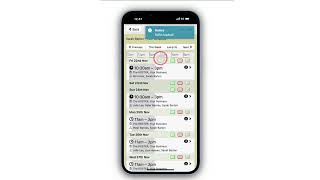
Use WorkRoster’s mobile app/site to view rosters, memos and staff contacts, and adjust settings while on the go.
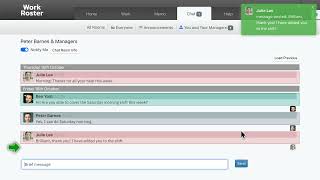
Message your managers privately, read and react to announcements, chat with the whole team and keep up on the mobile app.
Video lessons for Workforce Owners and Roster Managers.
See how new managers can add staff and create repeating shifts to get a workforce up and running fast.
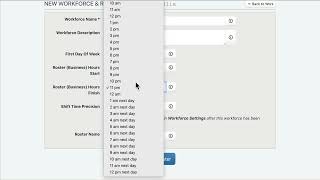
Set up a workforce by choosing business hours, shift precision and other basics, with options to edit later.
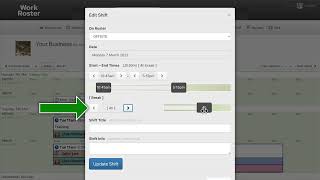
Discover how to build shifts, add titles and notes, set breaks, confirm or delete, assign staff and clone/repeat shifts.
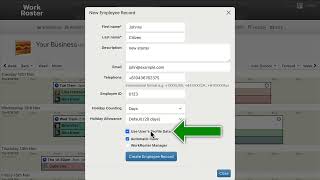
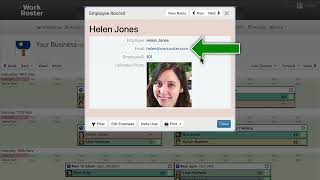
Create detailed employee records with contact info, unique IDs, holiday allowances, colours and manager privileges.
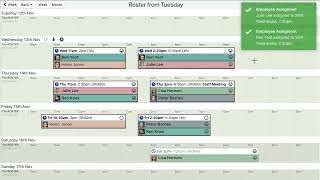
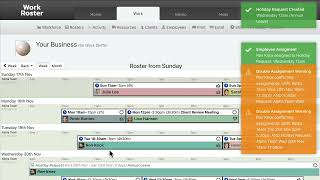
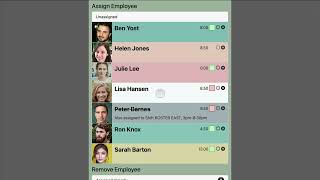
Use the assignment menu to allocate staff efficiently by checking hours worked, availability and interest while filtering or searching.
Understand the difference between draft and confirmed shifts and how to confirm or revert them individually or in bulk.
Manage several rosters within a workforce for different teams, locations or clients, colour-code them, and decide if separate workforces are needed.
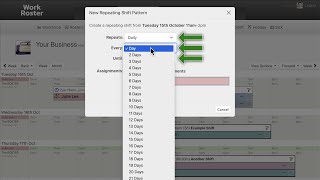
Copy shifts or patterns across days or weeks, with or without assignments, using drag‑and‑drop or a clone dialog.
Set up repeating shifts weekly or monthly, include or omit existing assignments and manage how assignments propagate through the series.
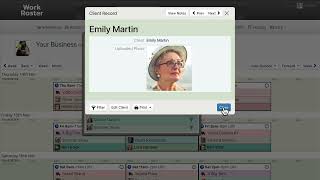
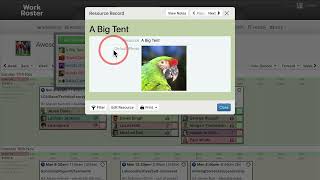
Create client/resource records (with optional photos), assign them to shifts and filter rosters by client or resource.
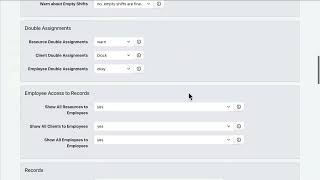
Customise roster behaviour by choosing the week’s start day, hours display, shift‑time precision, assignment warnings, employee‑access rules and upload a workforce logo.
Invite employees to connect to WorkRoster so they can view their schedules, manage their profile, set availability/interest and respond to memos.
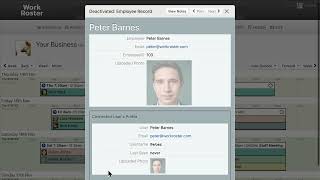
Learn when to deactivate or permanently delete employee records, and how to disconnect a user so the record can be reused.
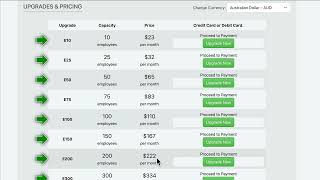
See how to upgrade your WorkRoster account on a monthly subscription, using secure payment methods, to unlock more capacity and features.
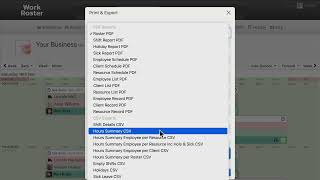
Explore manager‑oriented print and CSV export options, including reports for shift details, hours summaries, empty shifts, holidays and sick leave.
Use the Email tab to send a message with a full roster PDF attached to all employees, even if they aren’t connected accounts
Add holiday requests for employees, confirm them, handle conflicting shifts and optionally create a dedicated holiday roster.
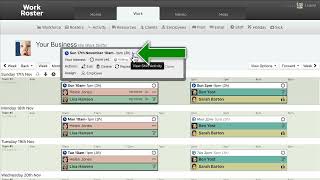
Review every change made to rotas and workforce via the Activity Stream, navigate by pages and view logs for specific shifts or assignments.
Toggle the Employee View option to see the roster exactly as a regular employee would, verifying settings before switching back to manager view.
Create, edit and archive private notes on employee (or resource or client) records, include them in printed records and keep sensitive info manager‑only.
Use the mobile app to add and confirm shifts, assign or remove employees/clients/resources, add holidays or sick leave and manage workforce settings while out and about.
Turn on chat rooms, post announcements, reply in employees’ private rooms, use reactions and read receipts, and moderate messages with Strike Out or Delete.
Keep a nightly Google Drive backup of upcoming shifts and a monthly archive of past shifts, by Drive or email, and check the Activity Log.